The difficult email is often only three lines long. A customer wants to move a deadline. You need to check capacity, decide what you can offer and reply without creating another misunderstanding.
An AI can produce a polite answer immediately. But unless it knows what you have agreed and what you can actually deliver, that answer may be worse than an empty draft.
AI email management works best when you separate the jobs: understand the thread, decide what should happen, prepare the response, then verify the action. This guide describes a workflow you can adapt to an approved email assistant. It does not require giving a tool permission to send messages on its own.
Start with the decision behind the email.
Before asking for a reply, ask what is unresolved. A long thread may contain three requests, an outdated date and a question that someone has already answered. “Summarise this email” can compress all of that into a paragraph while leaving you just as unsure what to do.
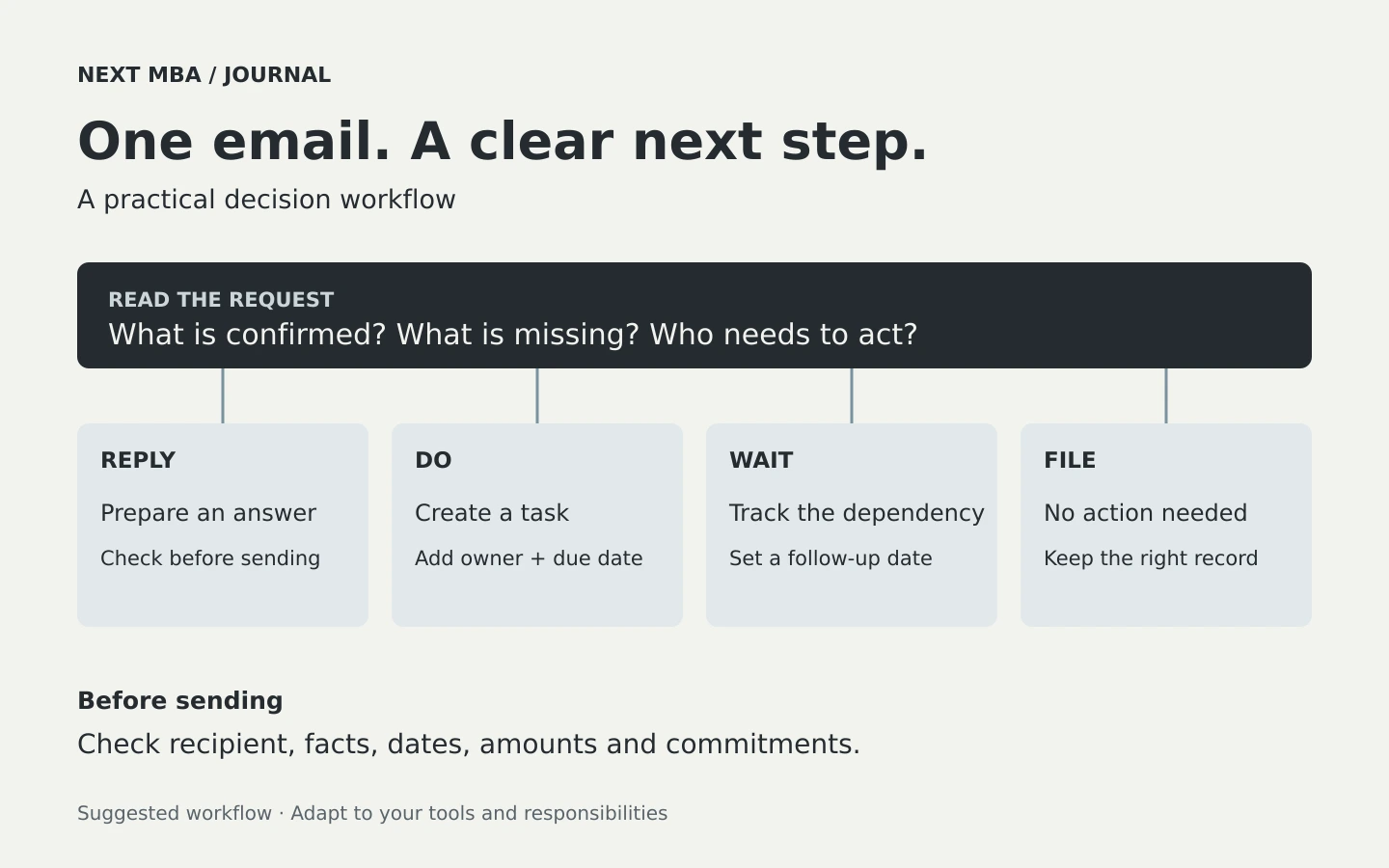
Ask for a small decision brief instead: what the sender wants, what has already been confirmed, what is missing and who needs to act. Require the assistant to point to the relevant message for each confirmed fact. If it cannot access an attachment or the earlier thread, that gap belongs in the brief.
Microsoft’s guidance on validating Copilot output makes a useful distinction here: generated content needs to be checked against its sources before you act on it.1 A smooth summary is a starting point for review.
Give each thread one of four destinations.
Use these categories as a simple working method. They are suggested labels, not a claim about the features of a particular product.
| Destination | What happens next |
|---|---|
| Reply | You have enough information. Prepare, check and send the response. |
| Do | The email creates work. Record a specific task with an owner and due date. |
| Wait | Someone else must answer. Record whom you are waiting for and when to follow up. |
| File | No action is needed. Keep or archive it according to your normal records process. |
A message can involve more than one destination: reply to acknowledge a request and create a task to investigate it. The important part is making both actions explicit. Archiving the message does not complete the task.
Give the assistant examples of what matters in your business. An unfamiliar sender may be a new customer with a time-sensitive question; a familiar sender may be sharing an optional newsletter. Sender identity alone is a poor substitute for reading the request.
A fictional example: the deadline that moved
A client asks: “Could we have the first draft on Thursday instead of Monday? We need it for an internal review.” Your team has not confirmed whether Thursday is possible.
A weak instruction is “Write a friendly reply.” It leaves the most important decision open and invites wording that sounds like a commitment.
A better brief says: the client is requesting a change; Monday is the existing delivery date; Thursday is unconfirmed; the next action is to check with the project owner. If you can genuinely commit to an update by tomorrow, the response could be:
Thanks for letting me know about the review. I’m checking whether we can bring the first draft forward to Thursday. I’ll confirm by tomorrow at 12:00 London time. Until then, Monday remains the agreed delivery date.
That is an invented example, not a customer message. Notice the two separate commitments: delivery and the time of the next update. Both need to be realistic. The assistant should not invent the second just because it makes the email sound reassuring.
A prompt for preparing a reply
Before you paste a thread or connect an inbox, check which information your organisation permits the tool to process. Remove unrelated personal details. Start with a small set of ordinary messages so you can see how the assistant handles your wording and missing context.
Where voice can make the process easier
Speaking is useful when the decision is clear in your head but awkward to type: “Keep Monday as the delivery date. Offer a short progress call on Thursday, but ask which time suits them.” The assistant can turn that into a draft for you to inspect.
Keep the original email and draft visible together if your tool supports it. Read dates, amounts, names and recipients on screen. A voice summary can omit the one line that changes the meaning of a thread.
For tools that can act on spoken instructions, distinguish “prepare this” from “send this.” Review the final version after your last correction, not an earlier draft. If you lose your place, ask which message is currently selected before continuing.
This is one example of a broader AI employee workflow: give a defined assignment, inspect the result and make the consequential decision yourself.
Measure completed work, not generated drafts.
Try the process on a comparable group of messages over several working days. Count the time spent reading, giving instructions, checking and correcting. Record whether each thread reached a useful next step.
If drafting gets faster but checking takes longer, narrow the task. You might use AI only to extract unanswered questions, or only to shorten a reply you have already written. There is no need to automate every part for the process to be useful.
Check your waiting list at the end of the session. Every item should say who owes the next answer and when you will revisit it. A clean inbox is pleasant; a forgotten customer is still a problem.
Common questions
Can AI reply to emails automatically?
Some systems support sending as well as drafting, depending on their permissions and configuration. Begin with drafts you review. Whether automatic sending is appropriate depends on the message, the consequences and the reliability of your process.
Do I need to connect my entire inbox?
Not to try this method. You can start with an authorised, appropriately redacted thread in a tool your organisation allows. Connected access may add context, but the available scope and controls depend on the product.
Will this work in a second language?
You can ask for help with wording, but check that the translation preserves the commitment you intended. For conversations that move from email to a call, try our guide to business English speaking practice.
Source and editorial note
- Microsoft Support: Validate Copilot output before you act on it.
The workflow, prompt and fictional example are original editorial suggestions. They are not a NEXT MBA product feature list or a measured time-saving claim. Source checked on 30 September 2026.